
How to use AreaderZ
This guide takes you from “just installed it” to reading, summarizing and translating. Steps are written for someone who has never set up a Safari extension before. If something does not match what you see, the support page has a FAQ and a way to get in touch.
1. Before you start
Check that your device is on the right version. On a Mac: Apple menu → About This Mac. On iPhone: Settings → General → About.
| Device | Needs |
|---|---|
| Mac | macOS 15 or later |
| iPhone | iOS 18.6 or later |
You also need Safari — AreaderZ is a Safari extension, so it lives in Safari rather than in another browser. You can use it without any setup at all if your device supports Apple Intelligence; otherwise you will do one short setup step later in section 12.
2. Install on a Mac
-
Open the App Store from the Dock, the Apple menu, or Launchpad.
-
Type AreaderZ in the search box in the top-left corner and press Return.
-
Find “AreaderZ: Reader & Summary” in the results and click the price button, then Install. You may be asked for your Apple Account password or Touch ID.
-
When the download finishes, open the app once from Launchpad or your Applications folder. The app window explains what to do next — that is all it is for; AreaderZ does its work inside Safari, not in a separate window.
macOS and iOS only offer an extension to Safari after its containing app has been launched at least once. If you skip this step, AreaderZ will not appear in Safari's extension list.
3. Enable it in Safari on a Mac
-
Open Safari.
-
In the menu bar choose Safari → Settings (on older versions it is called Preferences), then click the Extensions tab.
-
Find AreaderZ in the list on the left and tick its checkbox. Safari may ask you to confirm; click Turn On.
-
Still in that pane, look at the permissions section underneath. This is where you tell Safari which websites AreaderZ may act on. Choose Allow for all websites (simplest), or Ask if you would rather approve each site individually.
-
Confirm the toolbar button is showing. If you do not see the AreaderZ icon next to the address bar, click the Extensions button (the puzzle-piece-like icon in the toolbar) and choose AreaderZ. You can also drag it into place with View → Customize Toolbar….
-
Open any article-filled website and click the AreaderZ button. If the page turns into a clean article, you are set up.
Almost always this means the extension is switched off for that particular website, or the page is one Safari does not allow extensions to modify (such as some App Store and banking pages). Check Safari → Settings → Extensions → AreaderZ and make sure the site is allowed.
4. Install on iPhone
-
Open the App Store on your iPhone.
-
Tap Search at the bottom of the screen, type AreaderZ, and tap Search on the keyboard.
-
Tap “AreaderZ: Reader & Summary”, then tap Get. Confirm with Face ID, Touch ID or your Apple Account password.
-
When it has installed, tap Open to launch the app once. Read the short introduction, then close it. (Launching it once is required before Safari will offer the extension.)
5. Enable it in Safari on iPhone
There are two places to switch it on, and you need both — the first in Settings, the second inside Safari.
Part A — in Settings
-
Open the Settings app and scroll down to Apps → Safari. (On older versions of iOS it is simply Settings → Safari.)
-
Tap Extensions, then tap AreaderZ.
-
Turn the switch on.
-
Tap All Websites and choose Allow — or Ask, if you would rather approve sites one at a time. Tap Done.
Part B — in Safari
-
Open Safari and load any article page.
-
Tap the Extensions button in the address bar — it looks like two small squares, sometimes labelled aA or a puzzle piece, depending on your iOS version and layout.
-
If AreaderZ is not in the list, tap Manage Extensions and turn it on there.
-
If Safari asks for permission to access the page, choose Always Allow on This Website or Allow.
-
Tap AreaderZ in that list to run it on the page you are reading.
Tip: on iPhone, tapping the extension button in the address bar is the normal way to run AreaderZ, because there is no toolbar icon to click.
6. Allowed sites and the quick-access button
AreaderZ keeps its own list of sites you have allowed, called Allowed Sites. On a site that is on that list, AreaderZ adds a small floating button to the page itself, so you do not have to find the Safari toolbar to use it.
-
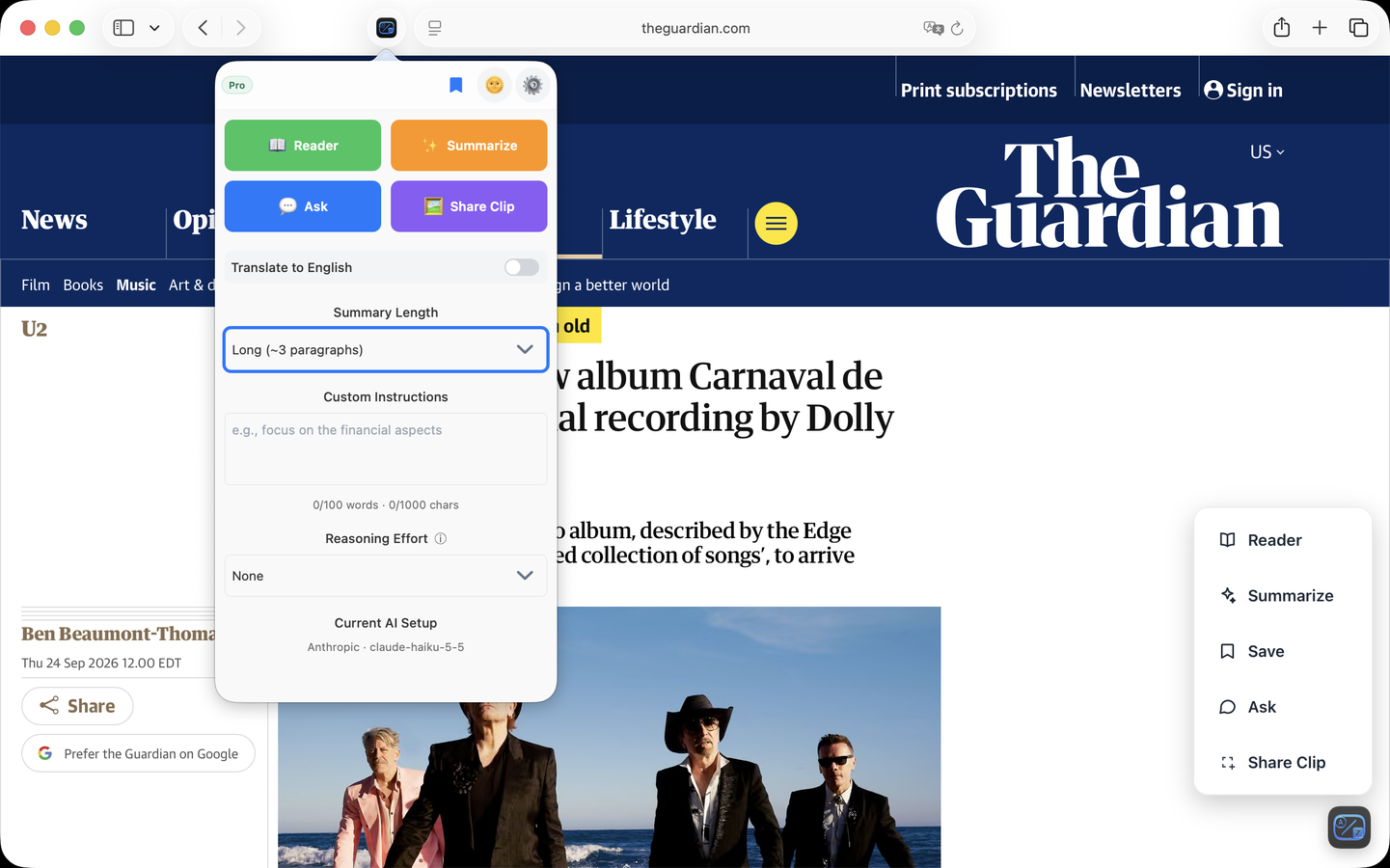
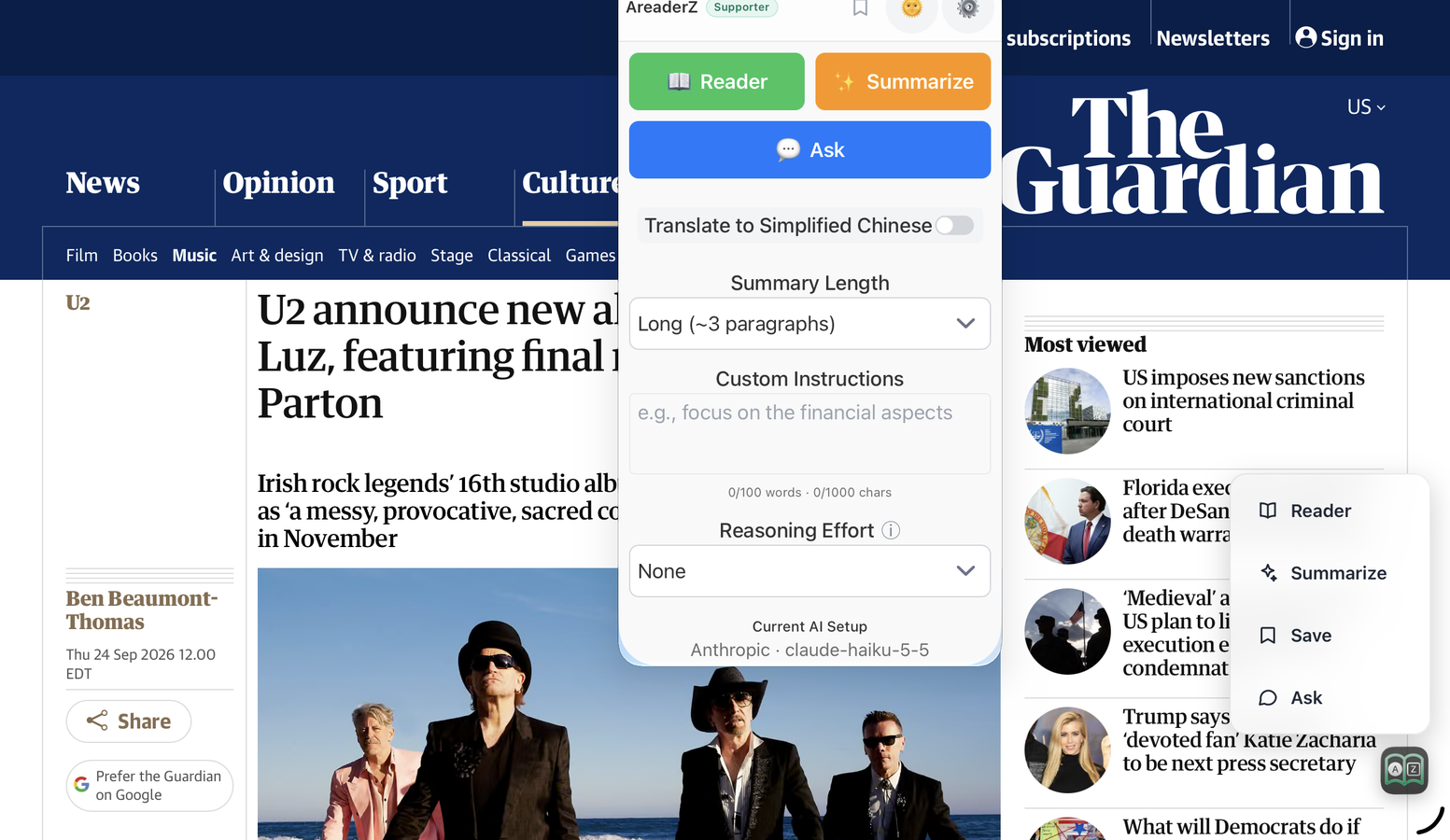
The floating button. Open a site you have allowed and a small, translucent AreaderZ button appears over the page. Tap it and it offers five actions: Reader, Summarize, Save, Ask and Share Clip. That is the whole interaction — tap the button, choose one, and AreaderZ does it. The button appears on allowed sites only, and never on a site you have not allowed.

The floating button on an allowed site: Reader, Summarize, Save, Ask or Share Clip -
Add a site from the extension pop-up. While you are on the site, open the AreaderZ pop-up. If the site is not allowed yet, it shows a row reading “Get quick access with the AreaderZ button on this site” with a blue Enable button. Click or tap Enable and the site is added. The row then disappears, because there is nothing left to enable.
-
Add a site from Safari's Share menu. In Safari, tap or click Share, then choose AreaderZ. A small confirmation sheet opens, titled “Add to AreaderZ?”, showing the site's address. The sheet explains: “Adding this site enables quick access: an AreaderZ quick-action button appears on its pages for one-tap reader or summary — no Safari toolbar needed.” Choose Allow to add the site, or Cancel to leave things as they are. The Share sheet does one job only: it adds or removes a site from the list.
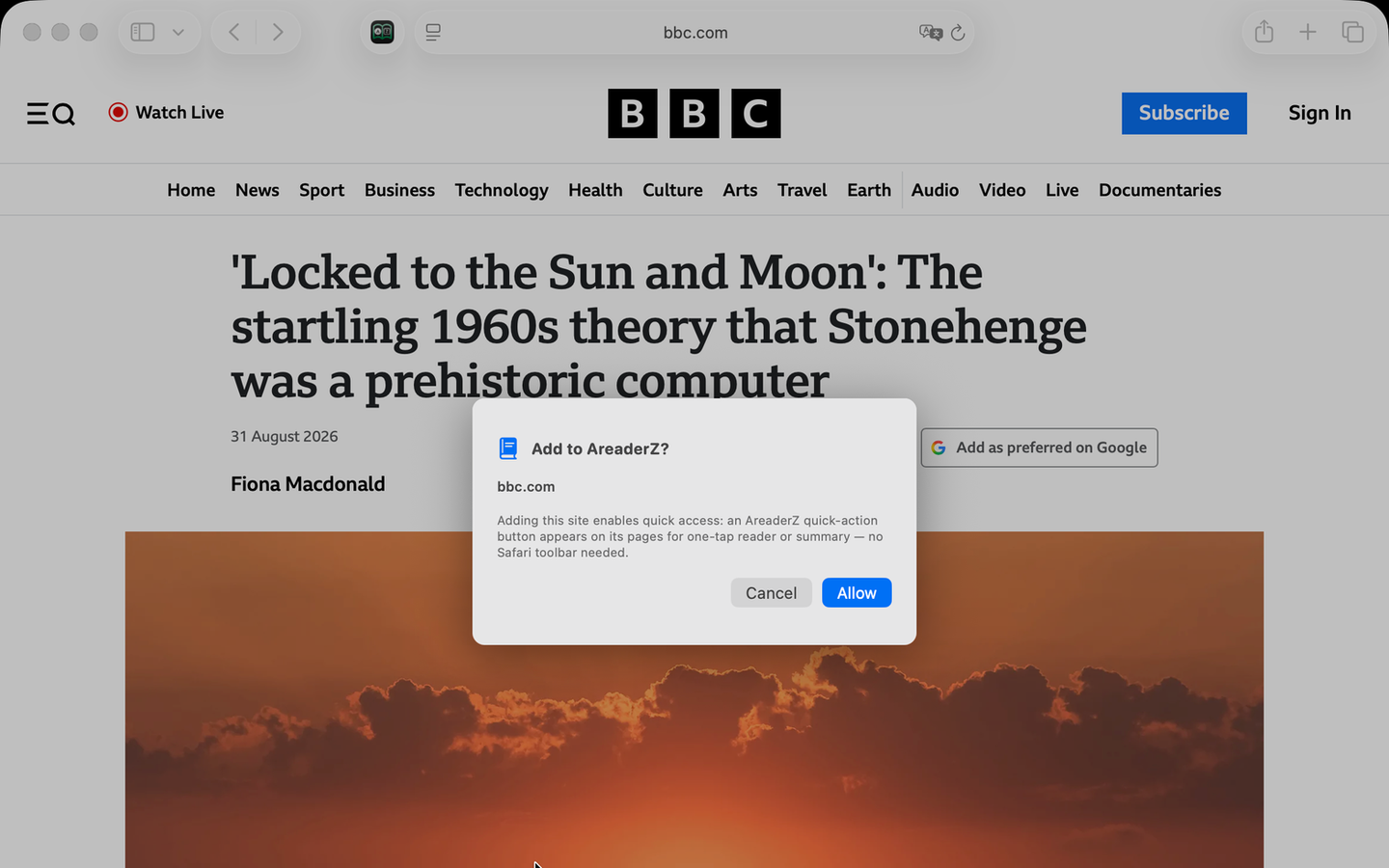
On macOS: Share → AreaderZ, then Allow 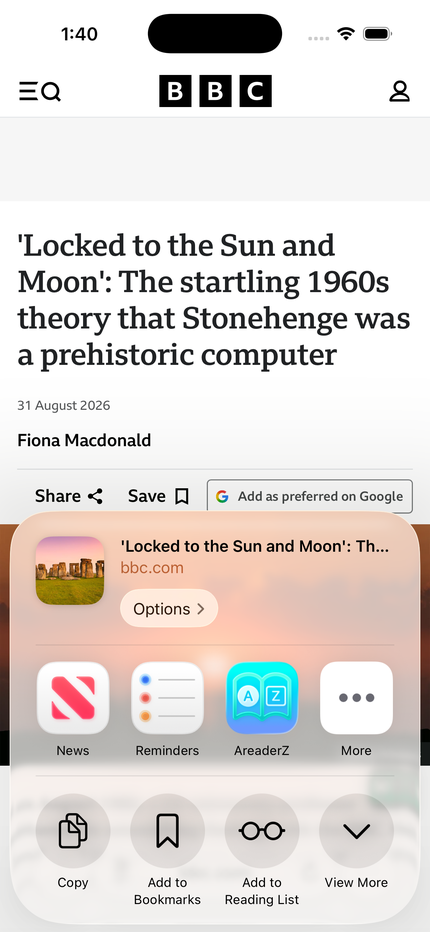
On iPhone: the same thing from the share sheet -
Manage the list in the app. Open the AreaderZ app and go to the Reader tab. The Allowed Sites section shows a count of how many sites are allowed, next to a Manage Allowed Sites row. Open it for a searchable sheet where you can type a domain and add it, or remove one you no longer want. The app puts it this way: “Adding a site enables quick access: an AreaderZ quick-action button appears on its pages for one-tap reader or summary. Subdomains are included.” So allowing
example.comalso coversnews.example.com. -
The list follows you between devices. Allowed Sites is kept in iCloud, so a site you allow on your Mac is already allowed on your iPhone. There is nothing to switch on — it syncs by itself.
-
To stop the button on a site, take that site off the list. Two ways: in the app under Reader → Allowed Sites → Manage Allowed Sites, or from Safari's Share menu — choose Share → AreaderZ on that site and the sheet says “AreaderZ quick access is on” with a Remove button. Removing a site hides the floating button on its pages. Everything else still works: you can run AreaderZ there from the Safari toolbar, or from the extension button in the address bar on iPhone.
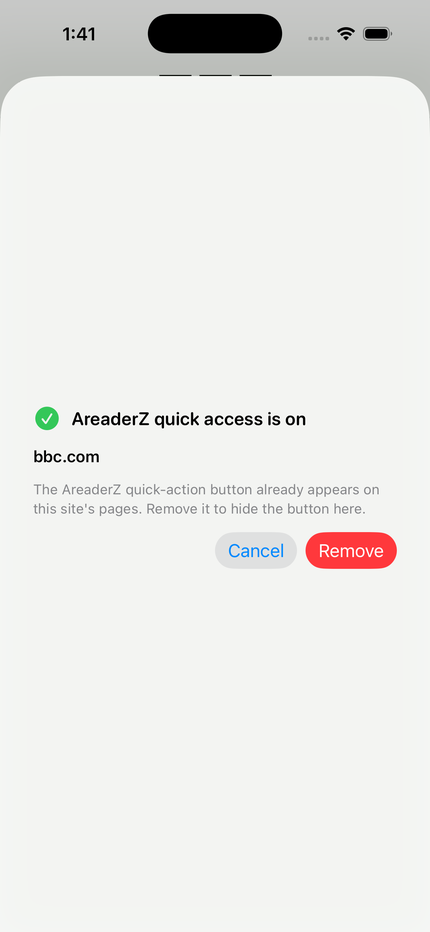
The same sheet removes the site when you no longer want it
Allowed Sites is AreaderZ's own list, and it decides where the floating button appears. Safari's permission setting decides whether the extension may work on a page at all. If you want the button on a site, the site needs to be on the AreaderZ list and allowed in Safari → Settings → Extensions → AreaderZ (on iPhone: Settings → Apps → Safari → Extensions → AreaderZ).
7. Use reader view
-
Open the article you want to read — a news story, a long blog post, a paper.
-
Click or tap the AreaderZ button.
-
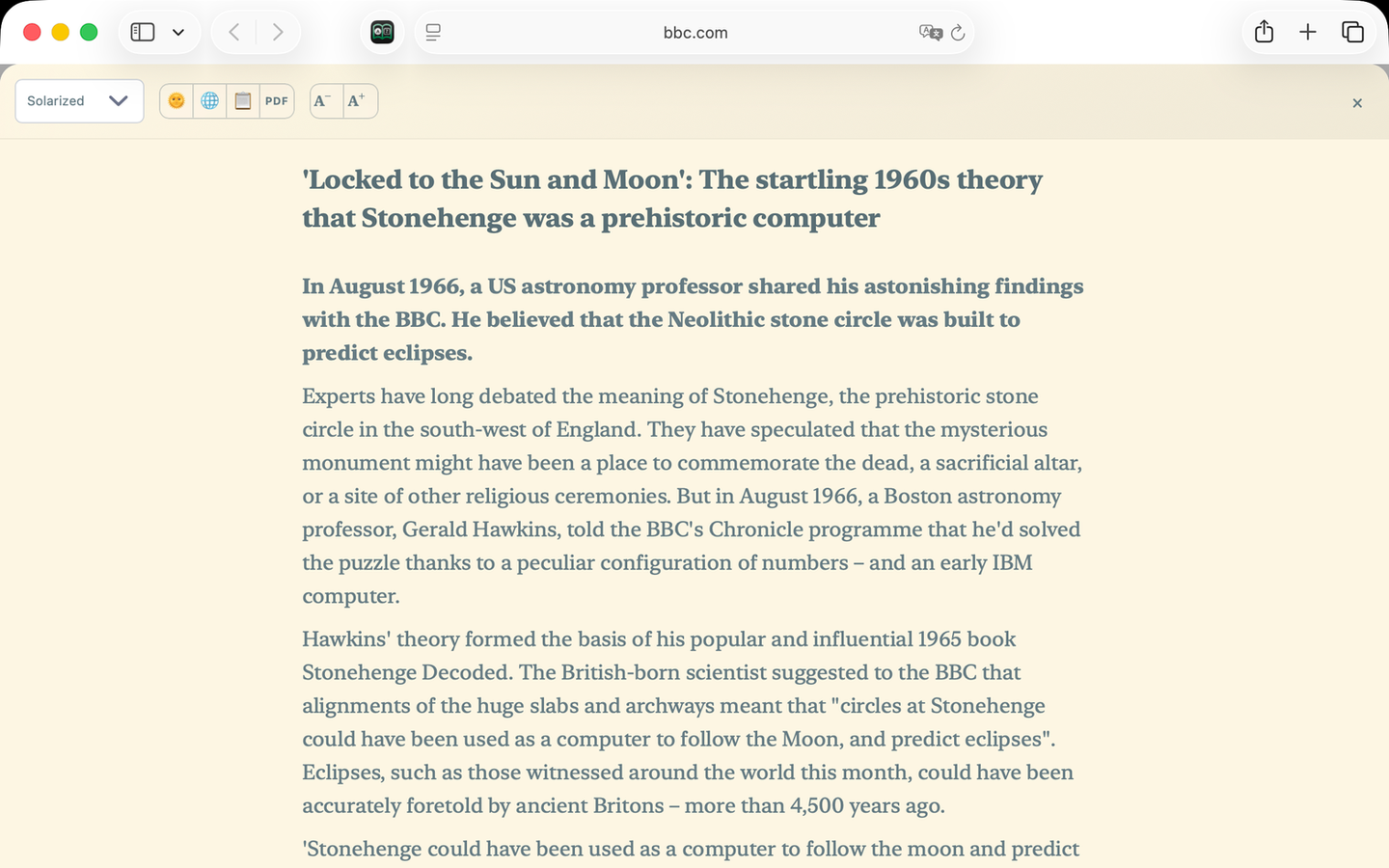
The page is replaced by the article alone: no ads, pop-ups, cookie banners, videos or sidebars. The text is laid out at a comfortable width.
-
Use the controls at the top of the reader to change the theme, adjust the text size, summarize, or translate.
-
To go back to the original page, click the AreaderZ button again, or close the reader from its controls. The real page is untouched — AreaderZ works on a copy.
A few sites — apps-like pages, checkout flows, and a handful that serve their article text in an unusual way — do not have a clean article to extract. On those, the reader may show less than you expect, or AreaderZ will tell you it could not find an article. Reporting it on the support page with a link helps. Paywalled and login-only pages are their own case — see 8. Paywalls and locked articles.


8. Paywalls and locked articles
AreaderZ reads the page Safari is showing you. It has no subscription to anything, it does not sign in anywhere on your behalf, and it cannot get past a paywall.
If an article sits behind a paywall or a login, sign in on that site in Safari first — with your own account — and open the article. AreaderZ then works on the page you can already read.
- Metered sites. If the site has let you through to this article, AreaderZ reads it like any other page.
- Preview-only pages. When a site shows a teaser rather than the article, the teaser is all there is to read — and all there is to save. Articles saved that way carry a note in the app saying they may be incomplete because of a paywall, with a link to open the page in Safari.
- Nothing is shared with the publisher. AreaderZ has no account of its own and sends nothing to the site. The page goes to the AI provider you chose, and nowhere else.
Paywalls pay for the writing. AreaderZ is a better way to read the articles you have access to, not a way around the ones you do not.
9. Summarize a page
-
Open the article and click the AreaderZ button to enter reader view.
-
Click Summarize in the reader controls. (There is no need to select text first — AreaderZ reads the whole article.)
-
Choose the length you want: a very short version, a medium one, or a longer, more detailed summary.
-
Watch the summary being written out line by line as it is generated. You can start reading before it has finished.
-
To stop early, click the stop or cancel control. To try again with a different length, run it once more.
-
Revisit the same article later and the recent summary is shown from your device's cache, without contacting a model again.
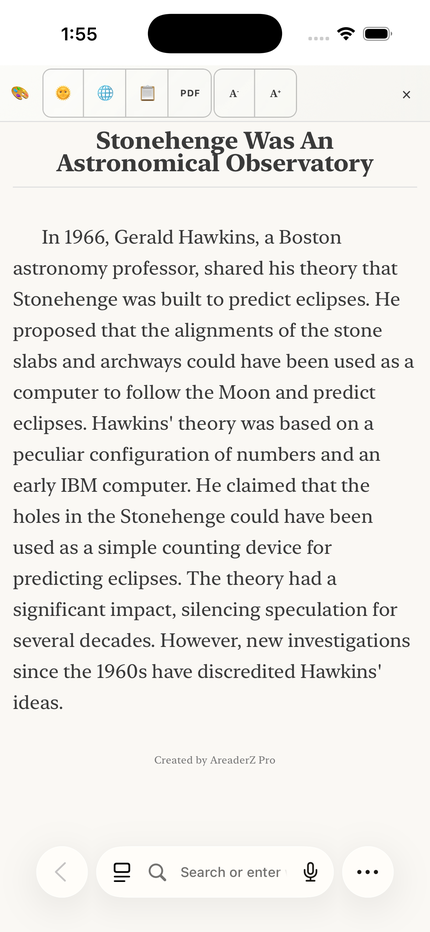
10. Translate a page
-
With the article open in reader view, click Translate.
-
Pick the language you want from the list. There are more than 20, including Spanish, French, German, Japanese, Chinese, Arabic, Hindi, Portuguese, Russian and Korean.
-
The translation streams into the page as it is produced, paragraph by paragraph, so you can read as it goes.
-
Switch back to the original at any time — the original text is never overwritten, only covered by the translation.
-
Recent translations are cached on your device so that returning to the page is instant.
Translation quality and speed depend on the model you chose in section 12. On-device Apple Intelligence is private and offline but works on a limited set of languages; a local or bring-your-own-key model generally covers more languages. Not every model handles every language well — some models support only a handful of languages, and quality varies between language pairs. If a translation looks weak, try a larger model or a different one for translation; the app lets you use a separate model for translation.
11. Change the reading theme
-
Click the AreaderZ button, then open Settings (the gear icon) from the reader or the extension pop-up.
-
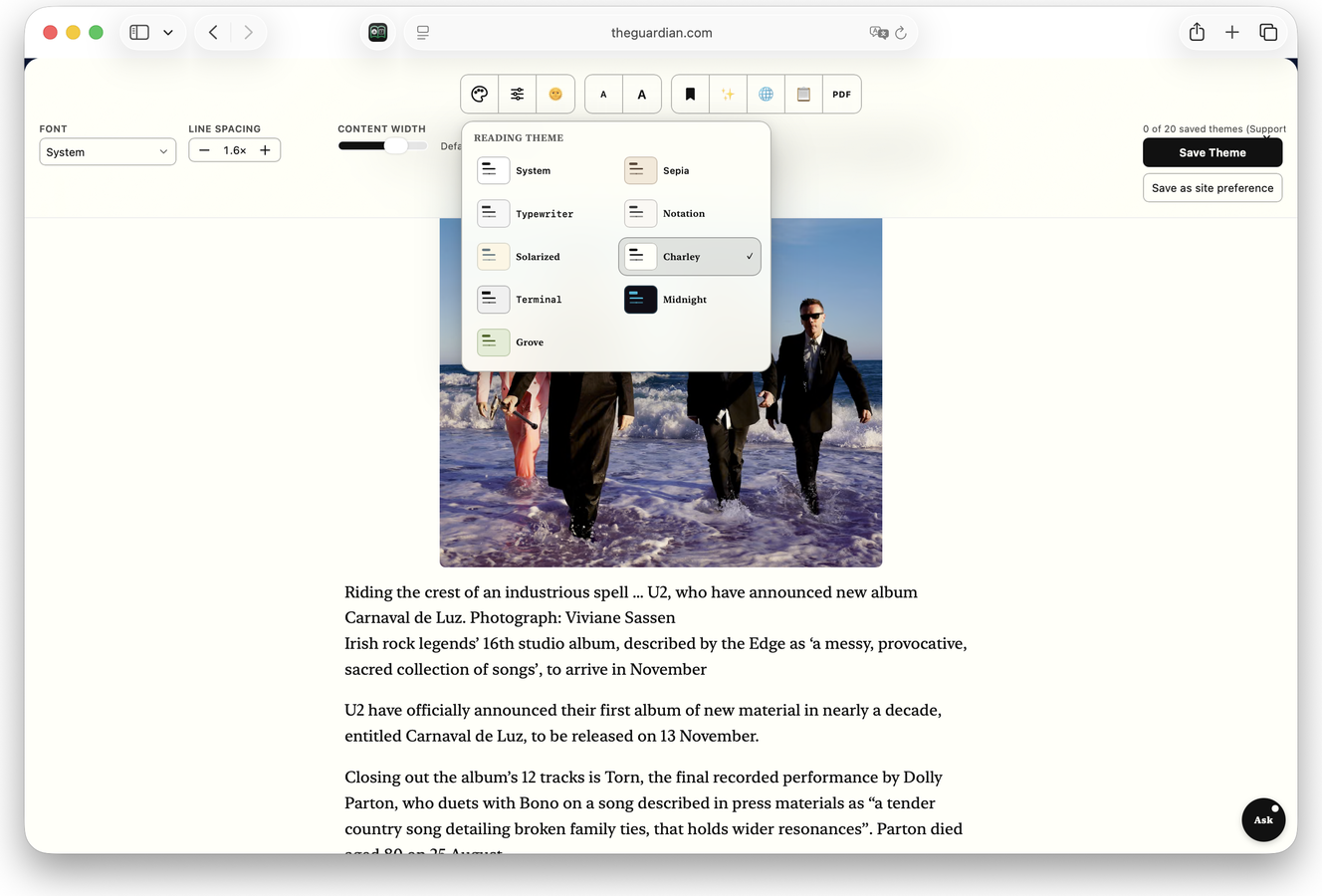
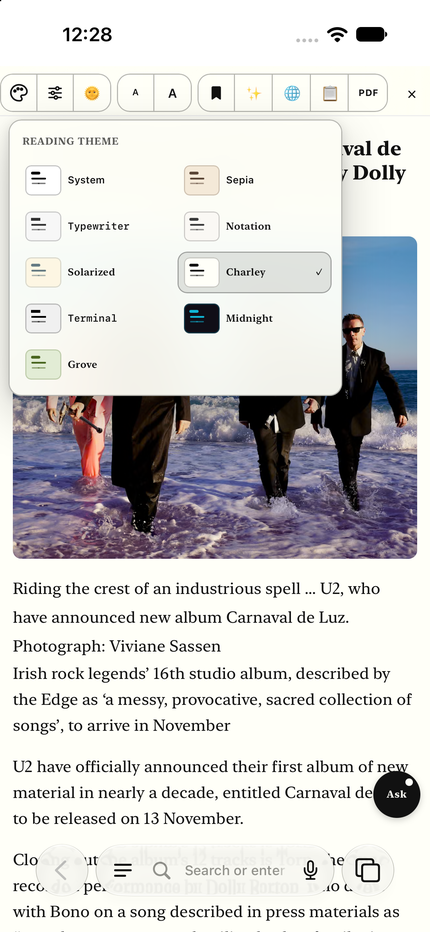
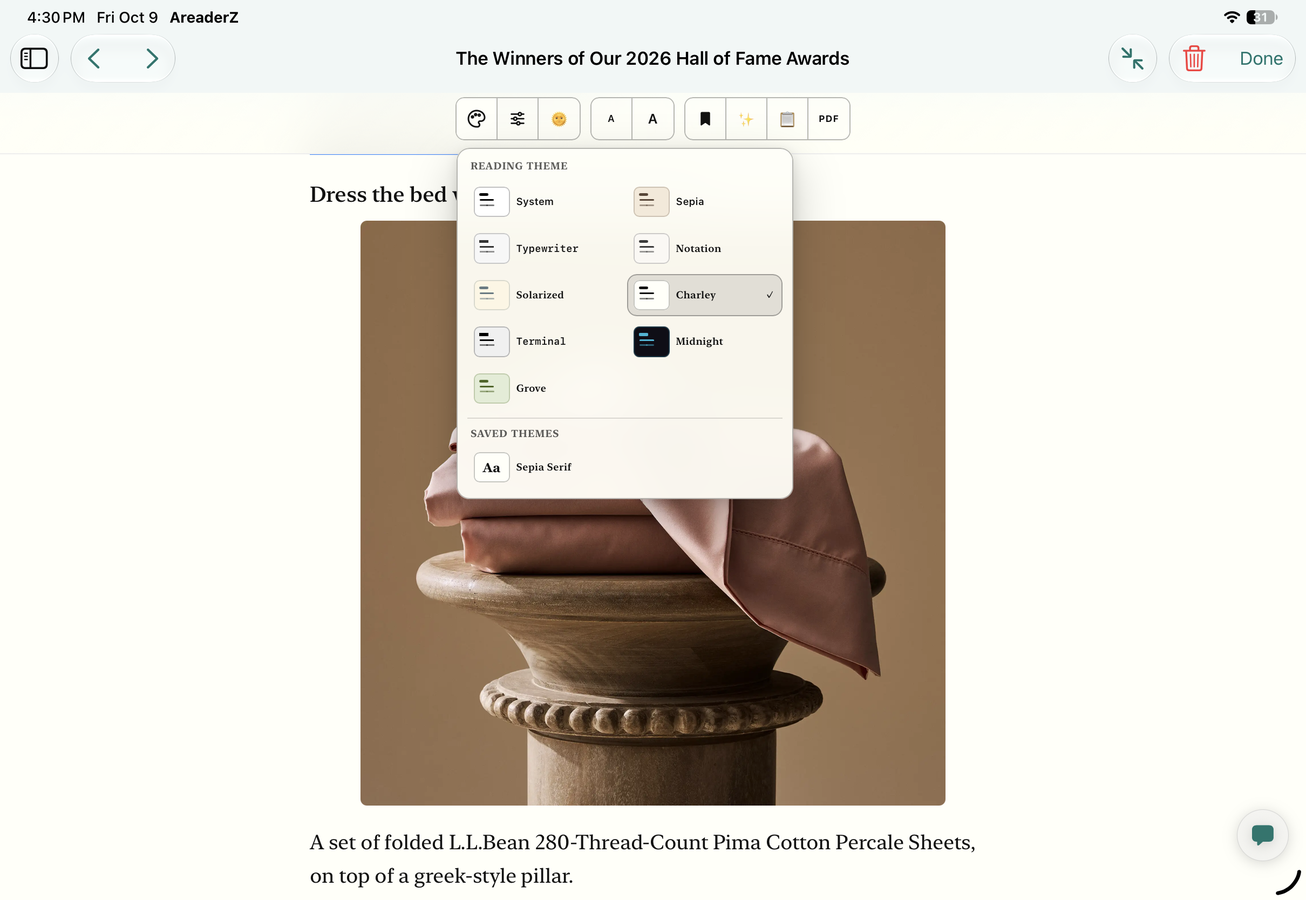
Find the theme section and pick from the ten: System (follows your device), Sepia (warm paper) and Solarized are free; Typewriter, Notation, Charley (high contrast), Terminal (dark and monospaced), Book and the two Supporter themes, Midnight and Grove, come with the paid tiers. In Pro you can also tweak a theme — its type, spacing and width — and save your own version.
-
Choose the light or dark variant; most themes have both. If you pick System, AreaderZ follows your Mac or iPhone's own light/dark setting automatically.
-
Adjust text size and line width nearby if the default is not comfortable.
-
Your choice is remembered for the next article, and it applies on every device you use — set it once per device.
12. Choose where the AI runs
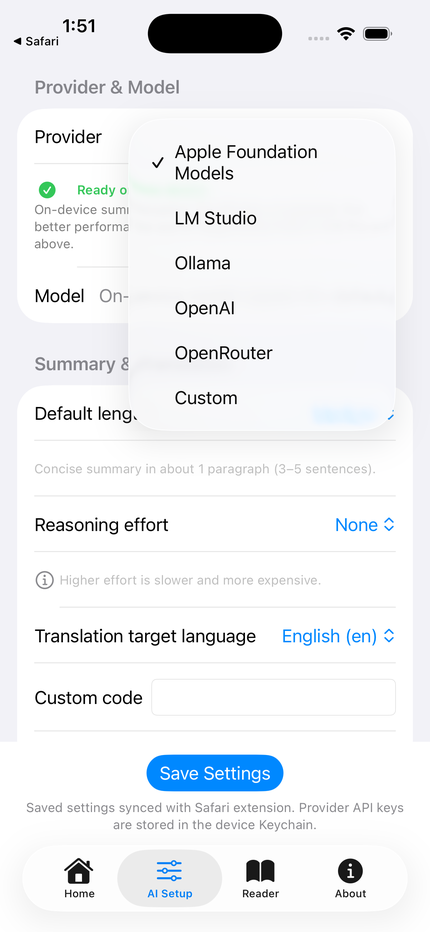
This is the one part of AreaderZ worth a couple of minutes. You are choosing which “brain” writes your summaries and translations. There is no wrong answer, and you can change it whenever you like.
Everything starts in the same place: click the AreaderZ toolbar button (or its button in Safari's address bar on iPhone), then open Settings → AI provider.
Option A — On your device (Apple Intelligence)
-
Choose On-device in Settings → AI provider.
-
If AreaderZ reports that Apple Intelligence is off, open System Settings → Apple Intelligence & Siri (on iPhone: Settings → Apple Intelligence & Siri) and turn Apple Intelligence on. It downloads a model in the background the first time; wait until it says it is ready.
-
Return to Safari and open the AreaderZ pop-up again. The on-device model should now be available. Choose it as the model for summaries, translations, or both.
-
That is the entire setup. No key, no account, no cost — and it works with the internet switched off.
Apple Intelligence needs supported hardware. On devices that do not support it, the on-device option stays switched off and you should use option B or C instead. This is an Apple hardware requirement, not something AreaderZ can work around.
Option B — A local server on your own computer (Ollama or LM Studio)
-
Install a model runner on your Mac: Ollama or LM Studio. Download a model in it and make sure the runner's own server is started.
-
Note the address the runner listens on. The usual defaults are
http://localhost:11434/v1for Ollama andhttp://localhost:1234/v1for LM Studio. AreaderZ offers both as presets, so you can simply pick the one you use. -
In AreaderZ choose Local server and select the Ollama or LM Studio preset — or paste your own address if you changed the port.
-
If your server needs a key or token, paste it in the same place. It is stored locally on your device and is never sent to us.
-
Pick which model to use for summaries and which for translation. They can be different models.
-
Open an article and summarize it. If it fails, check that the runner is running and that the port number matches what it is listening on — that is the most common mistake.
Your Mac does the work here, so speed depends on your machine and the size of the model. Nothing leaves your own network.
Option C — Your own API key (OpenAI, OpenRouter, any compatible service)
-
Create an API key with the provider you want to use — for example OpenAI, OpenRouter, or any service that offers an OpenAI-compatible API. Have the key and, if you are using a smaller provider, its base URL to hand.
-
In AreaderZ choose API key, then pick your provider from the list. If it is not listed, choose the custom/OpenAI-compatible option and paste the provider's base URL.
-
Paste your key and save it. It is stored in the Apple Keychain (or local storage) on this device and is never synced anywhere.
-
Choose the model for summaries and for translation. Many people use a cheaper, faster model for summaries and a stronger one for translation, or vice versa.
-
Summarize a page to confirm it works. You pay the provider directly at their published rates; AreaderZ adds nothing.
With option A, nothing leaves your device. With option B, the text goes only to the server you run. With option C, the text of the page you are reading is sent to the provider you chose, under their terms and privacy policy — that is unavoidable, because they are the ones doing the thinking. AreaderZ never sends it anywhere else. More detail in the privacy policy.
13. Keyboard shortcuts
-
AreaderZ can run its main actions from the keyboard, so you never have to leave what you are reading. Look in Safari → Settings → Extensions and, with AreaderZ selected, open its shortcut list to see your keys and change them.
-
There are separate shortcuts for summarizing and for translating, and you can tell them apart at a glance.
-
If a shortcut does nothing, it is usually because another app has claimed the same key combination — pick a different one in that same list.
Keyboard shortcuts apply on Mac. On iPhone, everything is reachable from the extension button in Safari's address bar.
14. Reading offline
AreaderZ keeps a cache of recent summaries and translations on your device. Open the same article again while you are offline and it is shown again immediately, without a round trip to any model.
With the on-device provider, you are not just reading cached results offline — new summaries and translations are generated offline too, because the model is on the device.
The cache lives on each device separately and is not synced. Clearing your browser data for AreaderZ, or removing the app, clears it.
15. Ask about an article
-
Open the article and click or tap the AreaderZ button to enter reader view.
-
Click the floating Ask button at the top-right of the content. A chat panel opens over the article.
-
Type a follow-up question about what you are reading and send it. Answers stream in as they are written, and they are grounded in that article — ask about a term, a claim, or something the article left out.
-
Keep asking for as long as you like. The conversation is kept for that page, so you can come back to it later. To start over, use the trash (clear) button in the panel to clear the conversation.
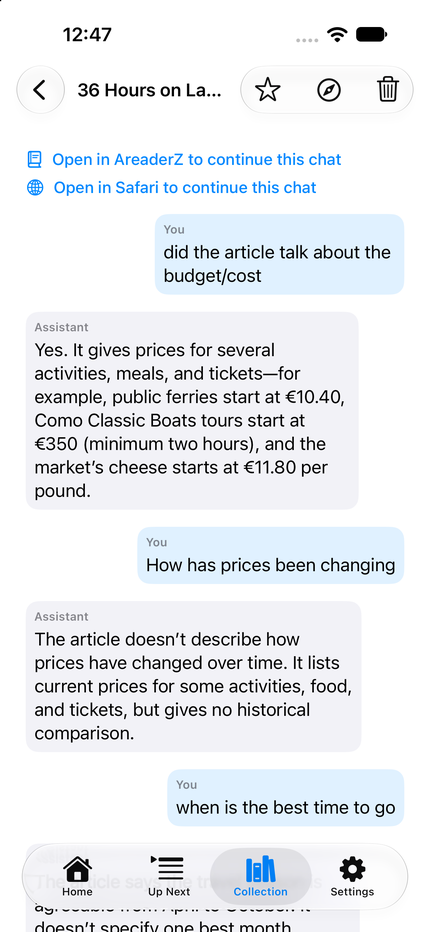
Ask uses the AI provider you chose in section 12. Apple's on-device model does not support Ask, so a larger model is needed — a local server or your own API key. On Safari, Ask is a Pro feature.
16. Save an article to your Library
-
Open the article in reader view.
-
Click or tap the bookmark (save) button in the reader toolbar.
-
The article is saved to your Library as clean Markdown, with a small YAML header recording the title, the source and the saved date.
-
Saving is free. Save the same article again and it updates the copy you already have instead of adding a duplicate.
17. Export an article as Markdown
-
Open the AreaderZ app and go to the Library, then the Articles tab.
-
Open the article you want to export.
-
Choose Export .md. The file is written as clean Markdown with its YAML header, using an Obsidian-friendly filename.
-
Save or share the file wherever you like — the Markdown is yours and opens in any Markdown editor or notes app.
18. Find saved articles and conversations
Everything you save lives in the Library in the AreaderZ app. It has two tabs: Articles and Conversations.
-
Articles lists the articles you have saved as Markdown. Open one to read it or to export it as
.md, and delete one with a swipe or with the trash button in the toolbar. -
Conversations lists your Ask transcripts, one per article. Open one to read the exchange again, or delete it to remove that conversation.
19. Sync your Library across devices (Pro)
-
Open Settings. On a Mac, choose AreaderZ → Settings from the menu bar, or press ⌘,. On iPhone, open the Settings tab in the app.
-
Turn on iCloud sync. It is off by default.
-
With it on, your settings and your Library — saved articles and conversations — follow you across your own devices through your private iCloud.
Sync is a Pro feature and uses only your own private iCloud. Your API keys never leave the device, and AreaderZ has no server of its own.
Settings layout: on a Mac, Settings opens in its own window with three tabs — AI Setup, Reader and About. On iPhone, Settings is a tab in the app.
20. Turn the extension off or remove it
Switch it off temporarily (Mac)
Safari → Settings → Extensions and untick AreaderZ. Nothing is deleted; the app and your settings stay put.
Switch it off temporarily (iPhone)
Settings → Apps → Safari → Extensions → AreaderZ and turn the switch off.
Remove it completely
On a Mac: open Finder → Applications, drag AreaderZ to the Bin, then empty it. On iPhone: touch and hold the AreaderZ icon on the Home Screen, choose Remove App → Delete App.
All of your settings, cached summaries and stored keys are removed from the device along with it — nothing is held on our side, because there is no account and no server.